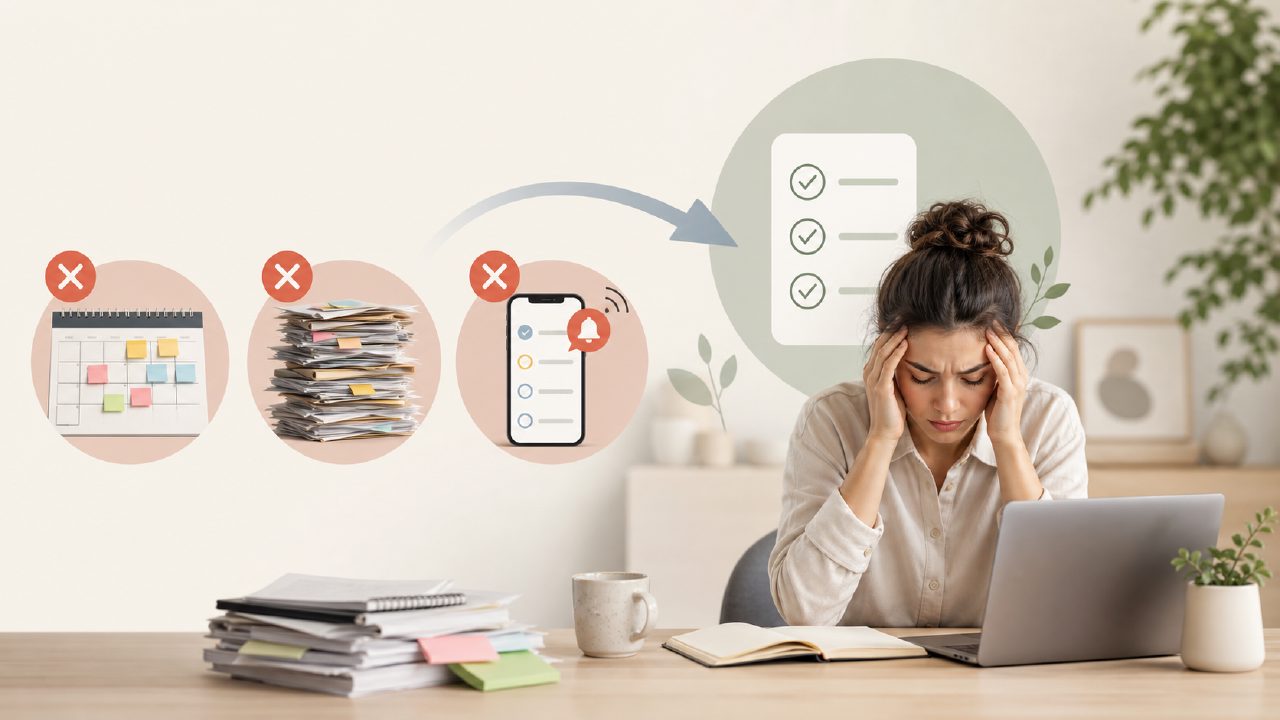
Why TickTick Isn’t a Set-and-Forget Tool
TickTick is easy to recommend—it’s fast, cross-platform, and the free tier is generous. But after watching a few friends burn out on it and spending my own three months deep in its features, I’ve noticed the same handful of mistakes keep coming up. If you’re about to migrate your whole life into TickTick, these are the gotchas you’ll want to sidestep before your neat system turns into noise.
Mistake #1: Treating It Like a Smart To-Do List (It’s Not That Smart)
A lot of people assume TickTick is an ai smart to do list app that will prioritise tasks for you. It isn’t. The Eisenhower Matrix view and the Pomodoro timer are nice, but the app won’t look at your overdue items and suggest what to drop. I set up a dozen tasks with different priorities, expecting some kind of dynamic sorting. That doesn’t happen. You still have to manually triage. The habit tracker is basic too—no pattern recognition or nudges beyond a simple streak counter.
If you want true intelligence, you’re better off looking at something like taskly, which actually weighs deadlines against your available time. TickTick is more of a disciplined container; it holds what you put in, but it won’t tell you what’s realistic.
Mistake #2: Overloading Tags and Lists
Because TickTick lets you create nested lists, tags, filters, and folders, it’s tempting to build a perfect GTD hierarchy. I’ve seen people with twenty lists, thirty tags, and then wonder why they never look at the tag view. The problem is that TickTick’s tag-based filtering works well only when you use a handful of consistently applied labels. If you tag something “urgent” on one list and “#urgent” on another, the search breaks.
I fell into this trap myself: I set up separate lists for “Work Projects,” “Personal Errands,” “Groceries,” and “Reading List.” Within two weeks I was bouncing between five views instead of one. The smart calendar view helps, but only if you’re disciplined about keeping your tag system clean. My advice: stick to three lists max and let the calendar handle the rest.
Mistake #3: Ignoring the Calendar Integration’s Limits
TickTick’s calendar sync with Google Calendar is one of its best features—until it isn’t. A common gotcha: tasks with due dates and times appear as all-day events if you don’t set a specific duration. I scheduled a task “Call dentist 10am” and it showed up as a block from midnight to midnight. Worse, changing the task time in TickTick doesn’t always push the update back to Google Calendar reliably. About once a week I’d see stale events.
Also, the calendar view doesn’t handle repeating tasks gracefully if you change the recurrence after creation. I had a weekly review task that I shifted from Monday to Tuesday, and the old Monday instances stayed orphaned. You need to manually clean those up. Small friction, but it adds up over a month.
Mistake #4: Expecting “Best Free AI Task Management App 2026” Experience Without Configuration
The marketing around TickTick sometimes makes it sound like it’s the best free ai task management app 2026 out of the box. It’s not. The AI features are limited to smart date parsing (which works well—typing “tomorrow at 3pm” actually creates the right time) and a few preset templates. There’s no adaptive scheduling, no automated rescheduling based on your work patterns, and no “this task is taking too long” warnings.
The free version also caps attachments at 5 MB and limits custom smart lists. If you’re planning to manage a team or track complex projects, you’ll hit the paywall quickly. For personal use, the free plan is fine, but don’t mistake it for a full project management suite.
Tradeoff: Flexibility vs. Friction
TickTick gives you tremendous flexibility—too much, really. You can set subtasks, checklists inside checklist items, habit reminders, and even white noise. But that flexibility often leads to feature bloat in your workflow. I’ve found that after the initial setup, I spend more time adjusting filters and tags than actually completing tasks. Compare that to taskly, which intentionally limits how many lists you can create and forces a simpler structure. That restraint can be better for people who just want a daily plan without tinkering.
Final Shortcut
TickTick is a solid app, but it rewards a minimalist approach. Don’t try to make it your everything system on day one. Start with one list, one calendar, and no tags. See how that feels for a week, then add only what’s broken. The smart tools are there, but they’re not automatic. If you want a tool that guides you instead of just holding your data, give taskly a look—it might save you the setup headache I went through.
Comments
Leave a Comment